UnderlayX AI

    Floating Image Effect for Free

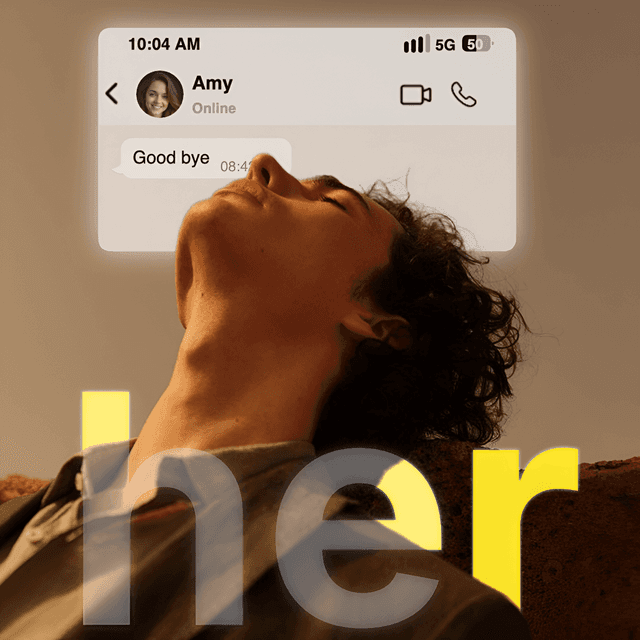
    Make objects float in your photo. Keep the background on part of the image while the rest floats with no background — then fill the floating area with a color, an upload, or an Unsplash photo.

    Create now
    Example 1 - Floating image effect
    Example 2 - Floating image effect

    Key Features

    Make objects float — keep the background on part of the photo, float the rest
    Partial background removal with a simple slider (top, bottom, left, or right)
    Fill the floating area with a color, an upload, or an Unsplash photo
    Position and zoom the floating background exactly where you want
    Transparent PNG export — great for ad-style composites

    How It Works

    1
    Upload your image to the free floating image effect tool
    2
    Choose which side floats and slide to set how much floats
    3
    Optionally fill the floating area with a color, image, or Unsplash photo
    4
    Position and zoom the floating background to taste
    5
    Download your floating composite instantly — no watermark

    Why Choose UnderlayX AI?

    Lightning Fast

    Process images in seconds with our optimized AI algorithms

    Privacy First

    Your images are processed securely and never stored

    Professional Quality

    AI-powered results that match expensive software

    More free AI photo tools

    Text behind imageClone imageOverlay imagesAI inpaintingChange backgroundRemove background
    Start Editing Now - It's Free!

    Floating Image Effect — FAQs

    What is a floating image effect?▾

    A floating image effect keeps the background on one part of your photo while the rest 'floats' with no background — so the subject looks like it's lifting out of the scene. It's a partial background removal: some of the photo stays anchored in its setting, and the rest is cleanly cut out. Great for creative, ad-style composites.

    How do I make an object float in a photo for free?▾

    Upload your photo, open the Float Effect tool, then choose which side floats (top, bottom, left, or right) and slide to control how much of the image floats. The AI removes the background only in that area, so the rest keeps its original backdrop. Your first edit is free with no watermark.

    Can I remove only part of a background instead of all of it?▾

    Yes — that's exactly what this tool does. Unlike a normal background remover that strips the entire background, the floating image effect removes the background from just the region you choose, using a simple slider. You decide how much floats and how much stays anchored.

    Can I put a different background behind the floating area?▾

    Yes. The floating area can be filled with a solid color, your own uploaded image, or an Unsplash photo — effectively giving you two backgrounds in one photo. You can also position and zoom the fill image to place it exactly where you want.

    Do I need Photoshop or design skills?▾

    No. Everything runs in your browser with a simple upload-and-slide workflow — no Photoshop, layers, or masking knowledge required. You can download a high-resolution PNG with a real transparent floating area.

    What is the floating image effect good for?▾

    It's popular for product and ad creatives, social posts, and thumbnails — anywhere you want a subject to pop or appear to float over a fresh background while part of the original scene stays intact.

    Want to remove the whole background instead of just part of it? Try our background remover or change background tool.